
Turn YouTube videos, Twitch VODs and any videos into shorts.
IntoShort is an AI video clipper for YouTube videos, Twitch VODs and uploads. Start with captioned clips from footage you already have, then edit and export your picks.
Try up to 3 videos free. No card required. No watermark.
Automatic reframing
From widescreen to vertical.
Keep the facecam and gameplay in view, with captions between them.See a long video become captioned shorts.
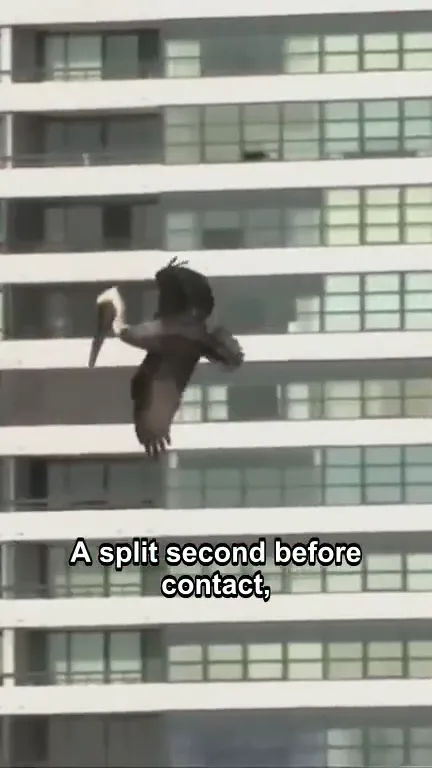
See how individual moments from a long video can stand on their own as shorts, with vertical framing and captions.
The source
Video credits
Footage by TerraNaturalist. Plunge-diving (part 1, Brown Pelicans) · CC BY 3.0. Shorts trimmed, reframed and captioned for this demo.
The shorts
How to make shorts from your videos.
Add a recording
Paste a YouTube or public Twitch VOD link, or upload a file.
Choose your settings
Choose which moments to look for, how long your shorts should be, and whether to add automatic captions.
Review and export your shorts
Review the suggested cuts with vertical reframing already applied, make any edits, and download your picks.
Edit cuts, captions and framing before export.
The AI clipping tool prepares a first draft. Refine the cut, arrange media, and tune captions in one timeline before you export.
- Trim the setup
- Fix a caption
- Adjust the crop
Export clips to CapCut or your video editor
Use IntoShort for the first cut
Let IntoShort find a moment worth clipping in your long video. Download the clip as an MP4, then import it into CapCut or your usual editor to add transitions, motion graphics, or extra footage.
If you plan to add captions in your editor, turn them off in IntoShort before exporting.
Frequently Asked Questions
What is Intoshort?
Intoshort turns long videos into short clips for TikTok, YouTube Shorts, and Instagram Reels. It uses AI to find moments in your original video and cut them into clips, with captions if you want them.
The suggestions depend on your footage. Some may be weaker matches for the moments you requested, so review the context and keep only the clips you want to publish.
You decide which clips to keep. If you want to do more editing yourself, use Intoshort to find the sections you want, then download them as MP4s and import them into your video editor.
What can I export for free?
Try up to 3 supported source videos per account without a credit card. You can edit and export every generated clip without an intoshort watermark. Import limits still apply, and free projects expire three days after creation.
What if the suggested clips aren’t the ones I’d pick?
Preview the suggestions and export the ones you like. Before generating, you can tell intoshort what kinds of moments to look for. It uses your transcript and samples frames, so it can miss a quick play or suggest a moment you’d skip.
What can I edit before exporting a short?
You can trim the clip, remove sections, adjust the framing and edit or hide captions. To add your own music, upload an MP3 or WAV in the Media panel under Video. Trimming is limited to the original start and end of the suggested clip.
Can I finish editing a short in CapCut or another editor?
Yes. Use IntoShort to find the passage you want, then download the short as an MP4 and import it into your editor for zooms, transitions, or more precise edits. If you plan to add your own captions, turn off IntoShort’s captions before exporting.
What videos can I turn into shorts?
Upload a video file or paste a link to a public YouTube video or Twitch VOD. You can turn gameplay, podcasts, interviews, commentary and tutorials into shorts.
Which languages does intoshort support?
English, French, Italian, Spanish, European Portuguese and Brazilian Portuguese, with automatic language detection available. Captions stay in the spoken language; accuracy varies with the audio.
How can I contact you?
Email us at contact@intoshort.app.
What’s in your last recording?
Try it free on up to 3 of your own videos.
Start with the video you already have.
Choose the workflow for your source, or learn how to keep gameplay and facecam visible in a vertical short.